Showing posts with label CorelDraw. Show all posts

Wednesday, December 12, 2018

Top 10 Tools in CorelDRAW Every Graphic Designer Should Know


Do you have the flair to be a graphic designer but don’t have any idea where to start from? Don’t be sad since for getting command on graphic designing, learning CorelDraw is beneficial for you. But to learn this desktop publishing application you need to emphasis on its core tools as they can play a primary role in making things easy for you. So, let’s get started from the impression of a vector drawing program.


An overview of CorelDRAW 

CorelDRAW is a vector graphics editing software. It teaches us how designs are made in multiple stages and help graphic designers by making their work easy. It is basically a packaging software used for designing logos, letterheads, packaging, visiting cards, etc. The first version of CorelDRAW was developed in January 1989 and the latest version till date is 2018(x8). The right way to learn this application is by joining a CorelDRAW training course from any renowned training institute in Delhi where you can comprehend core concepts and techniques from the industry experts.

Top 10 tools in CorelDRAW

Below is the list of top 10 effective and essential tools of CorelDraw which can help you to learn graphic designing more effectively.

At no. 10 Drop Shadow Tool: This tool helps us to create a shadow behind or below the objects/texts which further adds the details to design and enhances its look.


At no. 9 Fountain Fill Tool: This is a color fill tool which helps to fill an object with a gradient of colors or shades. It gives the object an attractive look. 


At no. 8 Color Eyedropper Tool: This is also a color fill tool but this tool helps to sample colors from other objects and apply it to another object. Probably this is the best tool for filling colors in logos after tracing them.


At no. 7 Transparency Tool: This tool is for partially revealing image areas underneath an object. If you want o merges different images then using this feature is really helpful for you. Trans-parenting images can add more no. Of images and creating a college, further enhancing the design.


At no. 6 Pen Tool: Using this tool we can draw curves in segments and preview each segment as we draw. This tool is very handy when we want to trace objects. According to me this is the best tool for tracing objects and duplicating them.


At no. 5 Rectangle Tool or Basic Shapes Tool: These tools help us create objects of different shapes like rectangle, square, triangle, cylinder, heart, etc. This tool is very useful for creating objects with complete accuracy.


At no. 4 Freehand Tool: This tool helps in drawing curves and straight-line segments. Using this tool, we can create objects of our own shapes. 


At no. 3 Shape Tool: This tool is mainly used for editing purposes such as manipulating text characters and curve objects. This tool is very useful for tracking objects as it helps to edit the curves and further adding accuracy.


At no. 2 Text Tool: One can easily recognize the work of this tool by its name. It helps to add and edit paragraph and artistic text. This is the only tool to add text and is very important for creating designs.
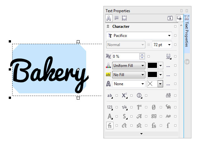


At no. 1 Pick Tool: This tool is the most important tool as it selects, positions, or transforms objects. This tool helps to move and place objects according to our will.


So, these were the top 10 tools used in CorelDRAW according to me. 

Hi, my name is Naman Luthra and my program is Graphic Design Premium course, which I’m pursuing from ADMEC Multimedia InstituteMy course comprises 4 major designing software which are Adobe Photoshop, Adobe Illustrator, Adobe InDesign and CorelDRAW. This blog is one of my CorelDraw project’s parts. Hope it will assist you!!

Sunday, December 2, 2018

A Quick Introduction to the Workspace of CorelDraw


If you are just started learning CorelDraw then you have landed on the right page. Today in this blog I’m going to give you a quick introduction to the workshop of this graphic design application. It will definitely assist you to comprehend your software more deeply and firmly.

So, let’s get started!!

Saturday, December 16, 2017

How to Design Poster in CorelDRAW

Introduction to Poster

Poster is designed printed paper. It includes both textual and graphic elements. But poster can be designed in both wholly graphical or wholly text. Poster design is different than any other design. Poster is basically used for advertisement of any company or event to communicate massage. 
 
If you are pursuing graphic designer and trying to make poster, so CorelDRAW is best option. 
 
First thing that you should know is that your poster should be very eye- catching and informative. Secondly lack of guidelines can really open to the possibilities to show creativity in the process. 
 
So now here are some points you need to know before making a poster in CorelDraw:
 
First of all you should make a rough layout of your design.
Then secondary choose the grid system, layout and color scheme. If you have logo of company or event for which you are designing poster, so choose the color scheme according to logo. 
 
Then collect the required content of event or company such as logo, names, date, website, and other information. Then thirdly when these entire thing are done, then before designing your poster digitally you should finalize all the design on paper.

Now once all these things are done you so start designing your poster. So there are things you can use in CorelDraw for ,making poster. 
 
You can use shapes combine with fountain fills, drop shadows that can give outer glow or shadow to your graphic or text, then with blend tool, custom pattern fills, various blending modes, image if company or event needed any original image of any model or event. 
 
First of all we will open a new document, set the name of poster and the standard page size. Then let’s begin. For example it is the poster for yoga studio. 
 
So the first thing do is to set the background, choose a rectangle shape then you can choose fountain fill for color and blending modes. You can choose the triadic color scheme like orange, yellow and green. 
 
Take a rectangle tool same as your page size and choose fountain fill or you can also make rays through shape tool. Take rectangle tool and make thin long boxes, copy and rotate it. Then fill the color according to logo or color scheme. Then as background is set, choose the image of yoga pose and set in the center I have chosen silhouette image. 

You can use drop shadow on your Image if needed Then if you have chosen shillihoute image you can place your punch line on image but if you have chosen the image of model you can place your punch line in bottom. Then place your logo on right or left side. Event information in bottom website name phone number or any other information. Then after all those are done your poster is completed. 

Wednesday, December 6, 2017

Applying Special Effects to a Bit-mapped Image in CorelDraw

CorelDraw with its extensive text-handling & precision drawing features is the ideal tool for virtually designing projects from logos, product packaging to technical illustrations and advertisements. In just a few years, CorelDraw has become a largest selling graphics software in the world.

There are a wide range of special effects that can be applied in bitmaps such as 3D, artistic effects, camera etc. There are some special category of bitmaps as given below. While applying an effect, you can zoom by using the mouse wheel, or pan by dragging the image. To learn basics to advanced level concepts always get registered with best CorelDraw Training Institute in Delhi.

Following is the list of few important CorelDraw Features:

CAMERA

It lets you simulate the effect produced by a diffusion lens. Problems in the picture so camera can simulate that.

3D EFFECTS

As we know that coral is a vector software. But we can create an illusion of depth by applying.
  1. Emboss
  2. Page Curl
  3. Perspective

ART STROKES

In art strokes, we can apply some real-life painting techniques and give an impression of handmade look.
Techniques includes
  1. Crayon
  2. Impressionist
  3. Pastels
  4. Watercolor
  5. Pen
  6. Ink

BLUR

Blur is said to be a negative effect for a picture but sometimes it can be used to simulate movement.
This include effects like Gaussian blur, Motion blur, and Zoom.

COLOUR TRANSFORM

Color transform is basically used to create photographic illusion and these illusions are created by color transform.
Color transform include effects such as Halftone, Psychedelic, and Solarize.

CONTOUR

Contour is used to enhance the edges of an image and effects includes:
  1. Halftone
  2. Psychedelic
  3. Solarize

CREATIVE

Sometimes we have to apply texture and shape to an image and this is possible with creative.

It includes effects Fabric, Glass block, Crystallize, Vortex, and Stained Glass.

DISTORT

Distort will allows you to distort the surface of an image. It also includes some further effects like Ripple, Blocks, Swirl etc.

NOISE

Every image has some graininess in it and noise let you to modify it.
It also includes effect like Add Noise and Remove Noise.

SHARPEN

Sharpen is a feature which is used to reduce noise & blur to enhance eyes.
It includes effects such as Adaptive Unsharp, High-pass, and Unsharp mask.

PLUGINS

Plug-ins basically allow users to use a 3rd party filter. And the installed plugin appears at the bottom of the bitmap menu.

The best way to learn these techniques is by joining best graphic design institutes in Delhi for CorelDraw. Candidates will get an opportunity to be a part of art-sketching classes and professional development program. 

Joining Short term Graphic Design Course in Delhi will not only open avenues for your dream job but give you an opportunity to learn your desired skills which can help you survive in a competitive world. Register for free trial class by getting in touch with admission counselor at 9811-8181-22.

Saturday, October 14, 2017

Importance of CorelDraw in Graphic Design

CorelDraw is most frequently and commonly used graphic designing application today. Initially CorelDraw was first drawing application that was fully window based application. Few version of it was compatible on Apple Mac too but now it doesn't provide any support on it and also not compatible on Linux. It provides wonderful tools and commands which are mostly useful in illustration and layout making. It is also capable to make graphical artists task easier, simpler and faster to understand.

In CorelDraw different types of fonts and clip arts are available, which are useful to make visiting cards, logos, and various creative layouts. It is one of the most popular tools for making the illustrations of model in fashion designing too. In CorelDraw for fast vector work an interactive and mind blowing shaping and illustrations tools are available, which are useful for tracing any thing quickly.
  
It has an extensive range of tools that enable anyone to edit any shape or design with ease and precision, fitting of text according to the shape or design and creating custom color completely.

Although all the drawing programs have a definite anatomy but they share common pattern of tools and commands. the. The path selection for each drawing are composed with line segments with the help of anchor points at each end.

Use of CorelDraw:

CorelDraw is a 2D Vector based lay-outing application as we know already. In India, it is the backbone of DTP or Desktop Publishing and graphic design industry. Some of the common uses of CorelDraw are:
  1. Stationery Designing
  2. Magazine Designing
  3. News Paper Designing
  4. Books Designing
  5. Illustration Making
  6. Logo Making
  7. Designing of Calendar
and many more...
CorelDraw is not only a illustration & lay outing software but also it is an image editing software too. So if you want to learn CorelDraw then you need an experienced and professional mentor to train you. Now a days CorelDraw is a general purpose tool for professional or amateur designers all around the world for creating static 2D graphics and lay outing. In this application you can find full range image and vector editing tools which allow all the users to adjust brightness, contrast, color combination, color format changing from RGB to CMYK, adding watermark, special effects such as vignettes and special borders to bitmaps.

What CorelDraw Maker Must Consider:

The maker of CorelDraw must think about two things specially i.e. compatibility on all common OS and price specially for educational institutions. I know they understand it very well but they need to think like an CorelDraw learner, CorelDraw training provider, and like a design agency. CorelDraw still in 2015 not compatible with Linux, this is a serious point to understand by them. I hope they will do some for open source OS too.

ADMEC Multimedia Institute is the best CorelDraw training institute inDelhi for learning the features of this software and techniques of graphics designing through CorelDraw for all. Interested students can also join Graphic Design Course Delhi to become a graphic design pro so that you can lead the industry for advanced level creativity and visualization.

Tuesday, August 15, 2017

Use of Artistic Media Tool in Corel Draw?

There are many ways in which one can bring about improvement in graphic design using computer software’s. One such tool is Corel Draw as it is used consistently world-wide in designing images.

CorelDraw is a vector graphics editor developed and marketed by Corel Corporation. CorelDraw is designed to edit two-dimensional images such as logos and posters, brochures, and various patterns and designs and themes. The tools of CorelDraw are designed in such a way that designers are able to make their imagination a reality. Artistic media tools play a key role in this regard. Artistic Tools are a set of tools that give birth to creative shapes to the satisfaction of the designer. 

 What is Artistic Media Tool? 

Artistic media tool Is a revolutionary result of Corel DRAW's Power line feature which is now called "Preset". This media tool surrounds your drawn lines with specific preset vector object and can quickly change the look of a simple object, text or a line into a state of the art graphics.

Using the Artistic Media Tool, you can draw lines of varying thicknesses and shapes, paint with a brush or sprayer, or draw calligraphic lines. The tool has five drawing modes: Preset, Brush, Sprayer, Calligraphic, and Pressure. These modes will be active when the icon of artistic media tool in the tool box is clicked. 
 

We can use the Artistic Media Tool in two ways:

1. Draw with it as you do the Freehand Tool—click and drag to create lines.

2. Select an existing object, such as a line or circle, and apply one of the Artistic Media Tool strokes to it.


USES OF ARTISTIC MEDIA TOOL

1. Preset: Preset tool is the first tool among the five drawing modes of artistic media tool. Once the preset tool is active on the click of artistic tool in the tool box, we can start drawing preset stroke like free hand tool into any shape. The stroke can be applied on any auto shapes like rectangle or octagon. These strokes can be further modified by applying different colors and changing the size of it. 
 
2. Brush: The second tool among the five drawing modes of artistic media tool is called Brush. Once the Brush tool is active, we can start drawing brush stokes to any shape we want. It is also possible to modify it by changing the size of the strokes and applying the brush strokes on vari ous basic shapes. Under the Brush section of artistic media tool, there are different categories of brush strokes like scroll, object, sensual, symbol, artistic, splatter, Calligraphy, texture which can be used to modify the brush strokes.

3. Sprayer: Sprayer is the third artistic tool which appears when the artistic tool is active in the tool box. Sprayer strokes give the designer an easy hand to design the layouts and even convert such strokes into sizable objects to meet the requirements. Like preset, and brush tool, modification of the stroke is possible by way of coloring it and changing its size. 

These strokes can be further separated into various objects by breaking them apart using Ctrl+K. There are also a number of categories under the sprayer section like Food, music, stars, mosaic, plants, objects, foot prints, Brush strokes, splatter etc. These give the designer an easy access to these objects without having to draw them manually. These strokes can be applied to any auto shapes.
 
Spray list gives us options to add and remove objects, and to reverse the order of the objects placed in a category. Spray order gives the options to change the order of objects sequently, randomly and by direction. There is also a rotation option to change direction of the object and an offset option to determine the offset of an object. 
 
4. Calligraphic tool: Calligraphic tool enables us to make free hand strokes and modify them by adding color, changing color and size. Freehand smoothing allows us to smooth the curves as we create them. Stroke width can be used for increasing the width of the objects. Calligraphic angle enables us to determine the angle of calligraphic objects created.

5. Expression tool: Pressure tool makes the pressure, tilt and styles features active to vary brush strokes. Pressure tool is used to vary the size of the nib. Tilt tool is used to vary the flatness of the nib and pen bearing is used to determine the rotation of the nib.
 

Conclusion:

A close study of the artistic tools reveal that these play a vital role in designing pages and layout in Corel Draw software. One common feature of all the artistic tools is that they can be used by the designer like a free hand tool to create any shape one wants and even change its look by modifying it by way of changing the colour, size and following the path of any auto shapes drawn. This makes it easy for designer to create page borders and object borders. 

Artistic tools also enable the designers to create objects by separating them from the rest of the group. For example, a bucket. On the whole, use of artistic tools in Corel draw leave the designers with a good designing experience. I would consider the artistic tools as a unique feature of Corel Draw which makes it stand out among the similar applications used for Graphic designs.

Monday, April 24, 2017

How Certificate Course in CorelDraw could add a new dimension to your designs

Corel Draw is a vector based graphic designing software which is used for creating logos, brochures, flexes and vector designs based on creativity and lining. This certificate course is all about learning the latest version of CorelDraw which is X8. Learning this software will help individuals in creating any kind of designs which is printable and giving new dimensions to the designs.

From the last decade, training in CorelDraw has gained a boom in graphic designing industry. It is considered as the most popular software in the productive market. Any individual can effortlessly master CorelDraw techniques within no time if they are quick enough to understand the minute detailing and ready to work hard. 
 

Who should join this course?

Students with a aim to make their career in graphic designing industry with basic knowledge of computers can opt for this course.

Individuals having creativity skills and an eye for good designs are eligible to join Corel Draw certificate course.

Why join this course?

The main purpose of learning CorelDraw is to create designs such as logos, brochures, and catalogues. The purpose of the training is to impart individuals with the proper knowledge of concepts from the basic level to advanced level. It will also focus on concepts of advertising and graphic designing with competence in skills, and completion of projects within the bounded time meeting the deadlines.

Learning Outcome

  • Corel Draw Certificate course will help students in creating and modifying objects for graphic design purposes.
  • Effects and features are taught for making complete publishing layout with utmost seamlessness.
  • Students will have sound knowledge with drawing grids, segments, using rulers, coloring, how to manipulate effects, moderating different types of shapes etc.
  • Learn how to work with layers, bitmap, objects, and vector
  • Project portfolio development to showcase student’s work
After doing certificate course in corel draw, students can be placed as a graphic designer in most of the reputed companies in almost all industrial sectors around the globe. With the rising demand of entertainment and art, they will get wide range of opportunities to choose from.

CorelDraw is a great tool for vector editing and prepress solutions. No tool can be a substitute for the aptitude and skill, which comes with passion and hard work. But using the right tool for the right job is indispensable.

A good designer needs to have an idea about how his or her design will be reproduced. Anyone who wants to learn CorelDraw should join a professional institute providing in-depth training mainly focusing on practical training with complete commands and project work. Learning CorelDraw from experts will also help you understand the difference between rich and poor designs. It will also enhance the overall designing sense. Learn CorelDraw today and start a great graphic designer career.

Sunday, November 6, 2016

5 top applications for professional Graphic Designer

Graphic design applications are altering every year and graphic designers must be updated with latest technologies if they want to deliver spectacular work as per their client requirements.

These days, graphic design software is persistently being utilized to make visual communication more effective. By making use of these software, designers will have the option to organize and manage in a better way with various digital images, logos, clip arts and much more. If you want to deliver your work as a professional, then knowledge top application is a must.. We have listed some of the best graphic design programs here. Go through each of them and choose the one that suits your needs.

This software is ranked among the best software. It is a must for every graphic designer.
Uses:
  • Format vector images.
  • Creating illustrations and artworks.
  • Edit and resize images is extremely easy.
  • Copy Curve Segments feature allows reusing curve segments in projects.
  • Compatible with file formats, including AI, PSD, PDF, JPG, PNG, SVG, EPS, TIFF, DOCX, PPT and more
  • Work swiftly and proficiently with the added control from the Windows Real-Time Stylus pen-compatible tablets, like the Microsoft Surface, Wacom tablet and devices.
  • Includes 1,300 high-quality photos and illustrations, 125 fonts, 75 photo frames, 100 fills and more.
It is a raster graphics editing application developed and published by Adobe Systems.
Uses:
  • Enhance photos and images for use on websites
  • Create the backgrounds, site buttons and 3-D artwork.
  • Using a healing brush, clone stamp, patch tool photos can be modified.
  • For adding text effects using Strokes, drop shadows, bevel and emboss and other effects.
  • Remove unwanted content
  • For creating beautiful User interface designs and web pages.
It is a desktop publishing software application which works across desktop and mobile devices and produced by Adobe Systems.
Uses:
  • Create posters, flyers, brochures, magazines, newspapers, and books
  • Publish content appropriate for tablet devices in combination with Adobe Digital Publishing Suite.
  • Supports export to various formats like EPUB and SWF to create e-books and digital publications.
  • Also supports XML, style sheets, and other coding markup
  • Suitable for exporting tagged text content for usage in further digital and online formats.
It is a software for producing and editing complex page layouts in a WYSIWYG (What You See Is What You Get) environment.
Uses:
  • Produce layouts like single-page flyers and projects for magazines, newspapers, catalogs etc.
  • Supports professional typesetting preferences such as kerning, curving text along a line, and ligatures.
  • Provides features like easy layout synchronization, multiple undo/redo functionality.
  • Support for direct PDF import and output.
  • Multiple users can edit different areas on the same page.
5. Adobe Illustrator 2015
It is a vector graphics editor application developed by Adobe Systems.
Uses:
  • Create illustrations, charts, graphs, logos, diagrams, cartoons of real photographs both for print and digital media.
  • Import any image and use that image as a guide to trace and re-color a particular subject.
  • Easy conversion into a bitmap or jpeg image
In this era of rapidly-improving technology, there are always new tools coming up to comfort Graphic Designers stay on the cutting edge of design Industry. If you don’t know any of the above graphic design programs, then Graphic Design Institutes will help you get acquainted with these programs. Many graphic design Institutes offer diploma and certificate courses that are designed to help students to excel in the field of Graphic Design. Explore the best options available in the market and opt for the one which is as per your requirements.
Additionally, reading books, blogs, articles etc. related to the particular field will be helpful and always be willing to try and learn new things.

Friday, October 21, 2016

Most Important Graphic Design Software and their Uses in Animation

Becoming an animator can be an exciting career choice if you are someone who is creative, imaginative, good drawing abilities and skills to bring characters to life. A successful animator is someone who is keenly observant and curious about things around them.

Making animations has always considered as one of the most difficult aspects of graphic design that needs specific software and technological proficiency. It is a time-consuming activity that requires heavy software and high-speed computers.

However, over the past few years, the development of different graphic design tools has simplified the process of creating animations. Most of these tools are very easy to use and can help in creating animations that are perfectly suitable for the different applications. Here we have congregated organized some of the best graphic design software used in Animation Industry:

1. Adobe Photoshop

Adobe Photoshop is graphic design software mainly used for photo editing and image creation.

Animators use Photoshop widely during the animation production procedure. Photoshop is used for scanning of illustrations, as well as to ink and paint them. After the illustrations are all inked and painted, Photoshop filters are beneficial in adding special effects. The initial level illustrations are created with the help of Photoshop and then transported to software Adobe Image Ready for viewing images in motion. This technique is popular in web animation. The best way to prepare for a Photoshop career as an animator would be to create a sequence of avatar or gif animations. One can also digitally draw the characters, with the help of Wacom Tablet and can ink and paint them using Photoshop tools.

Some of its uses in Animation Industry:
  • It can be used for the creation of storyboards.
  • It is used mainly to create concepts, or concept art provided to the 3D modelers,
  • It can be helpful in creating Character Sheets, or blueprints for objects to be used in 3D modeling.
  • For generation of textures for 3D models.
2. Adobe Illustrator

It is a vector drawing program and is based on mathematical equations for drawing out shapes. Because of this feature, event after scaling vector graphics there will be no loss of resolution.

Some of its uses in Animation Industry:
  • Creating characters and effects in Illustrator for animation in After Effects has a number of benefits. These two programs work together, allowing all the advantages of Illustrator's drawing tools inside of Ae timeline. Apart from the flexibility with vector graphics, Ai files will automatically update in Ae composition when any modifications are made.
  • It is mainly used for creating digital illustrations, cartoon characters, different types of charts and logos.
3. CorelDraw

CorelDraw is software mainly used for vector graphic editing and design. It allows users to add special effects to images modify their contrast and color and manage multi-page documents. It also helps users to develop anything from business cards to invitations.

Some of its uses in Animation Industry:
  • Helps in the process of converting hand-drawn artwork to vector graphics
  • Creating animated GIF
  • Making a transparent 3D box with subtle shading effects
  • Creating logos
  • Object creation with a 3D appearance
  • Creating cartoon characters
So you want to be an animator? You've got a vast range of roles to choose from so long as any individual is ready to work on their skill set and portfolio, and make an impression on the industry by doing exceptional work. It's an extremely competitive field, but with hard work one can find contributing to an amazing team of artists producing movies, video games, tv shows, advertisements, and much more.

Don’t worry, if you don’t know any of the above software. ADMEC Multimedia Institute renowned animation and Multimedia Institutes can help newbies to get familiar with these programs. Most specialized courses that are designed to help students develop abilities in all of the areas needed to excel in the field of animation, including above mentioned major software programs that you will be expected to know.

Monday, October 17, 2016

What is the difference between Quarkxpress & CorelDraw?

"QuarkXPress" is Desktop Pagenation software. Basically this is a computer application for creating and editing complex page. It was first released by Quark, Inc. in 1987 and is still owned and published by them. QuarkXPress is used by individual designers and in large publishing houses to produce a variety of layouts, from single-page flyers to the multi-media projects required for magazines, newspapers, catalogs. It provides the basic functionality of font, alignment, spacing, and color, but it also provides its users with professional typesetting options such as kerning, curving text along a line, and ligatures. 
 
A QuarkXPress document contains text and graphics boxes both. The boxes can be reshaped, layered, and given varying levels of transparency and text alignment & also included wrapping style mentioned in runaround. Where as "CorelDraw" is a Vector application. we can use for a wide variety of projects like especially for logo creation. When I talk about LOGO, I simply say that “Logo” means information about something which is received to the people. We can also do so many things in this software. We can make pattern designs from basic shapes & lines to complex ones which are used to make vector illustration, logos etc. We can also import images or text & trace them to vector formed files. 
 
Here, first I would like to explain the term “Vector”. So, vector images have no pixels. They are displayed or printed by using mathematical position. Vector files are generally considerably smaller than a image. In this context, images however lose quality if they scaled to a larger size. In another words, I say that a vector image breaks down into a mathematical formula. A vector looks like an illustration. 
 
CorelDraw is used for vector graphic design. So, we must have noticed that most of the vector images have a cartoon like appearance which actually not pixelate. The reason behind it; is the same that vector graphics cannot display continuous variation in color which is important in itself. Therefore, the vector graphics technology is fast than any other. So, this is the difference between "Raster images" & "Vector images". Therefore, CorelDraw is vector drawing software which is made up of paths. So Vectors are always used with making a Logo. 
 
So, Now I talk about the Features of CorelDraw. First, I would like to explain CorelDraw in terms of the “Object” which is an element in a drawing such as a shape, image, line, text, curve or symbol. Second point is, “Drawing” which actually means- to create logos, posters, visiting cards, artworks. CorelDraw also can help users to develop anything from invitation cards to business cards or visiting cards. CorelDraw offers many practical applications and features to its users. It is fantastic software as any other software in graphic design
 
Therefore, CorelDraw software has mainly purpose is to create Logo Signs & to vectorize the images. This is why vector graphics are always used with creating a logo. A designer can create the vector logo & that logo can then be applied to anything from a business card to brochure with no loss of quality. 
 
So, One side QuarkXPress is Pagination software in which there is no designing.We should used it only for to make newspapers, brouchers etc. Where as on the second side Coreldraw is vector designing software in which we should make different kind of illustrations & poster,logo design etc.
Written By:  Karuna Kukreja
Course: Graphic Master

Sunday, June 12, 2016

Introduction of CorelDraw and it's Features!!!

Corel is marketed by Corel cooperation of Ottawa, Canada. This Corel cooperation developed & released a program which is called CorelDraw. This software was originally released in January of 1989. In present time, this software is used by so many people in the world with the latest version & this was the first graphics design software for the windows operating system.

CorelDraw, which is a PC-based graphic design vector drawing program; we can use for a wide variety of projects like especially for logo creation or to create brochures. When I talk about LOGO, I simply say that “Logo” means information about something which is received to the people. So, when I design a logo for any Company Keeping in mind its policies & its target audience.

In CorelDraw, We can also make or draw shapes, work with the text, also add colors & effects. In this sense, CorelDraw is a very flexible vector package. We can also do so many things in this software. We can make pattern designs from basic shapes & lines to complex ones which are used to make vector illustration, logos etc. We can also import images or text & trace them to vector formed files. Here, first I would like to explain the term “Vector”. So, vector images have no pixels. They are displayed or printed by using mathematical position. Vector files are usually considerably smaller than a image. In this context, images however lose quality if they scaled to a larger size. In another words, I say that a vector image breaks down into a mathematical formula. A vector looks like an illustration. CorelDraw is used for vector graphic design.

This is the reason that vectors have no quality loss & no file size increases. Basically logo designs & print work like posters, visiting card, and brochures should be designed as vector images using vector drawing software like CorelDraw. Whereas "Raster images" are made-up of a set grid of dots called pixels where each pixel is assigned a color value. Unlike a vector image, raster images are resolution dependent. When we change the size of a raster image, we stretch the pixels themselves which result is that the clarity of the image is loss & very blurry image. Raster editors like Photoshop is great for photographs as well as to adding effects, shadows & textures to design. So, a raster image is made of pixels, each a different color, arranged to display an image where as a vector image is made up of paths, each with a mathematical formula that tells the path how it is shaped & what color it is filled or bordered by.

So finally I must say that Unlike "Raster image", "Vector images" cannot be used for realistic image. This is because vector images are made up of solid color areas & mathematical gradients, so they cannot be used to show continuous tones of colors in a natural photograph. So, we must have noticed that most of the vector images have a cartoon like appearance. The reason behind it is the same vector graphics cannot display continuous variation in color. Therefore, the vector graphics technology is fast. So, this is the difference between "Raster images" & "Vector images". Therefore, CorelDraw is vector drawing software which is made up of paths. So Vectors are always used with making a Logo. 
 
So, Now I talk about the Features of CorelDraw. First, I would like to explain CorelDraw in terms of the “Object” which is an element in a drawing such as a shape, image, line, text, curve or symbol. Secondly, “Drawing” which means to create logos, posters, visiting cards, artworks & newsletters. Thirdly, “Vector Graphic” which means an image generated from mathematical descriptions that determine the position, length & direction in which lines are drawn. Fourth, ”Bitmap” this includes a image which is composed by grids of pixels. Fifth, “Fly out” means a button that opens a group of related tools. Sixth, “Artistic Text” which we can apply on special effects, such as shadows. Seventh, which is very important is a “Paragraph Text” which we can apply formatting options, & which can be edited in large blocks. Therefore before we design anything we must know about these terms.

In Corel Draw software users can do special effects to images, alter their contrast & color. CorelDraw also can help users to develop anything from invitation cards to business cards or visiting cards. CorelDraw offers many practical applications and features to its users. In present times, the new version of CorelDraw, known as X6, is a popular choice for so many buyers, as it can be used in many ways. This graphic software is a comprehensive solution for designing visual communications for any medium. Whether we are experienced or an aspiring designer, its workflow will help us to efficiently our creativity. So, CorelDraw is designed to edit two-dimensional images such as logos & posters. CorelDraw software providing many features for users to edit graphics. These features include contrast adjustment, color balancing, adding special effects like border to images, and it is capable of working with the multiple pages.

So, CorelDraw is a vector drawing tool. Therefore, we can create our designs by using CorelDraw. It is fantastic software as any other software. So, CorelDraw is robust graphics software. In this context, this is known as a Vector graphics editor. 
 
Therefore, CorelDraw Software has mainly purpose is to create Logo Signs & to vectorize the images. This is why vector graphics are always used with creating a logo. A designer can create the vector logo & that logo can then be applied to anything from a business card to brochure with no loss of quality. Therefore, this is the reason that CorelDraw is not only for logo creation software, but also to create web-graphics or multi-page marketing brochures.

Written By:  Karuna Kukreja
Course: Graphic Master

Featured Post

ADMEC Multimedia Institute Scholarship Program

The ADMEC Multimedia Institute scholarship program aims to select and trained talented non working female, married woman and non married m...